AI Workstation for Local LLMs (2026): What to Build at Each VRAM Tier
A local AI workstation is a VRAM budget with a computer attached. Pick the model first, then the card, then everything else. Three builds for 32B, 70B, and headroom.
📋 This article contains affiliate links. We may earn a small commission at no extra cost to you.
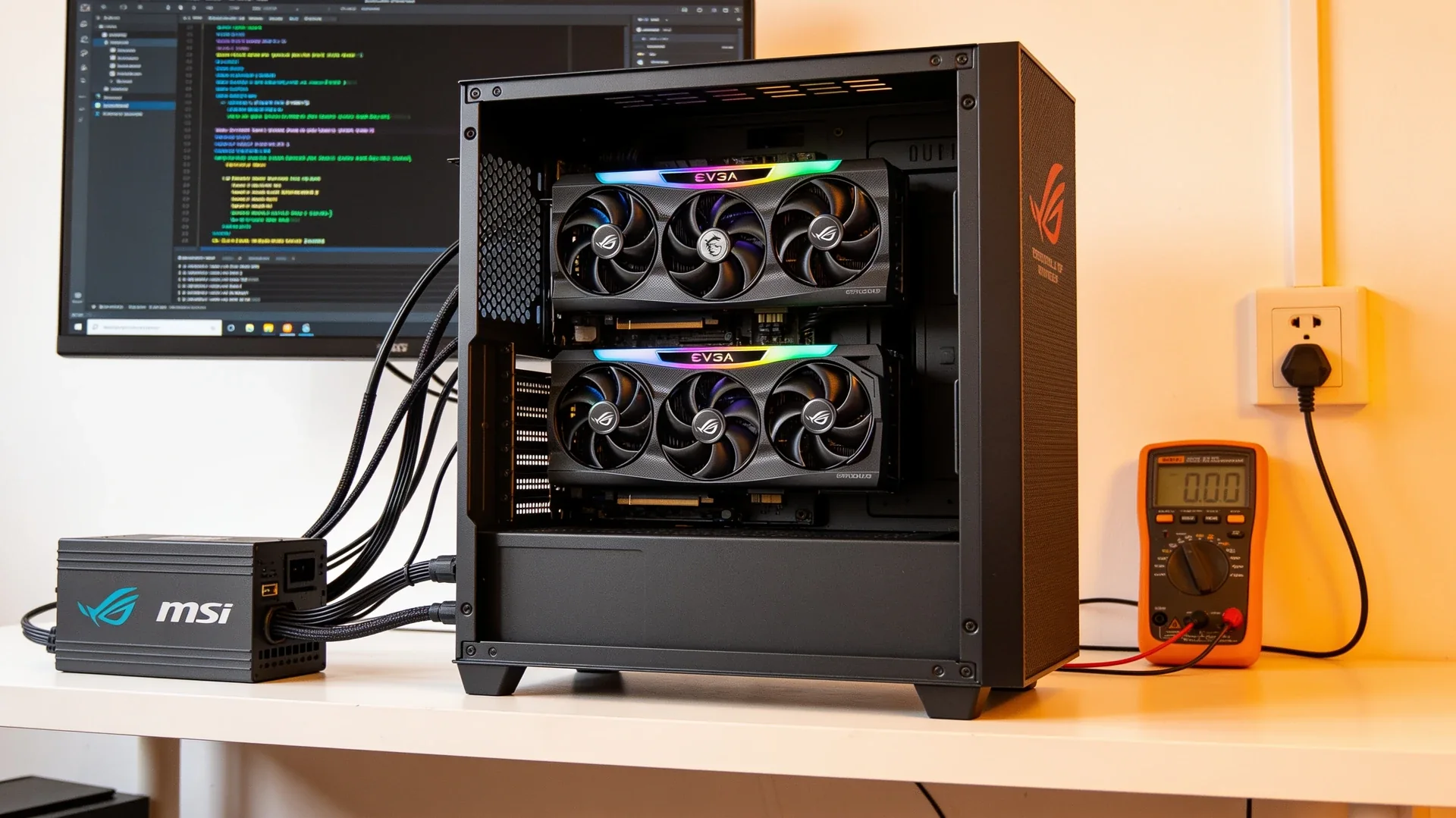
Current product picks
These are current Amazon listings for the GPUs discussed in this guide. Amazon pricing can move faster than the market, especially for discontinued and halo cards.
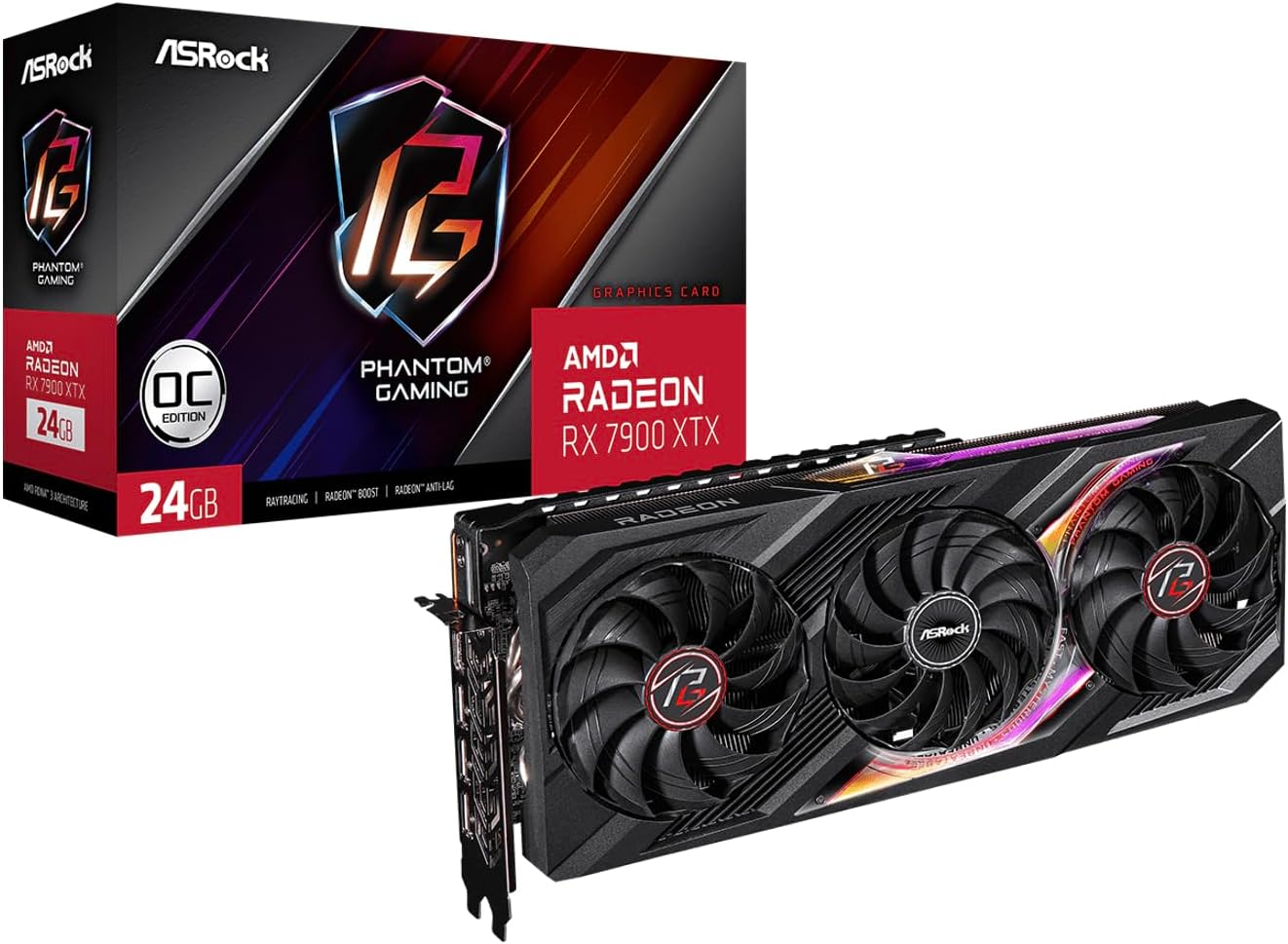
ASRock Phantom Gaming Radeon RX 7900 XTX 24GB
New, warranted, and currently the cheapest 24GB card on Amazon — below the renewed 3090 listing. The trade is ROCm setup instead of CUDA.
- VRAM
- 24GB GDDR6
- Current listing
- ~$1,350-1,450
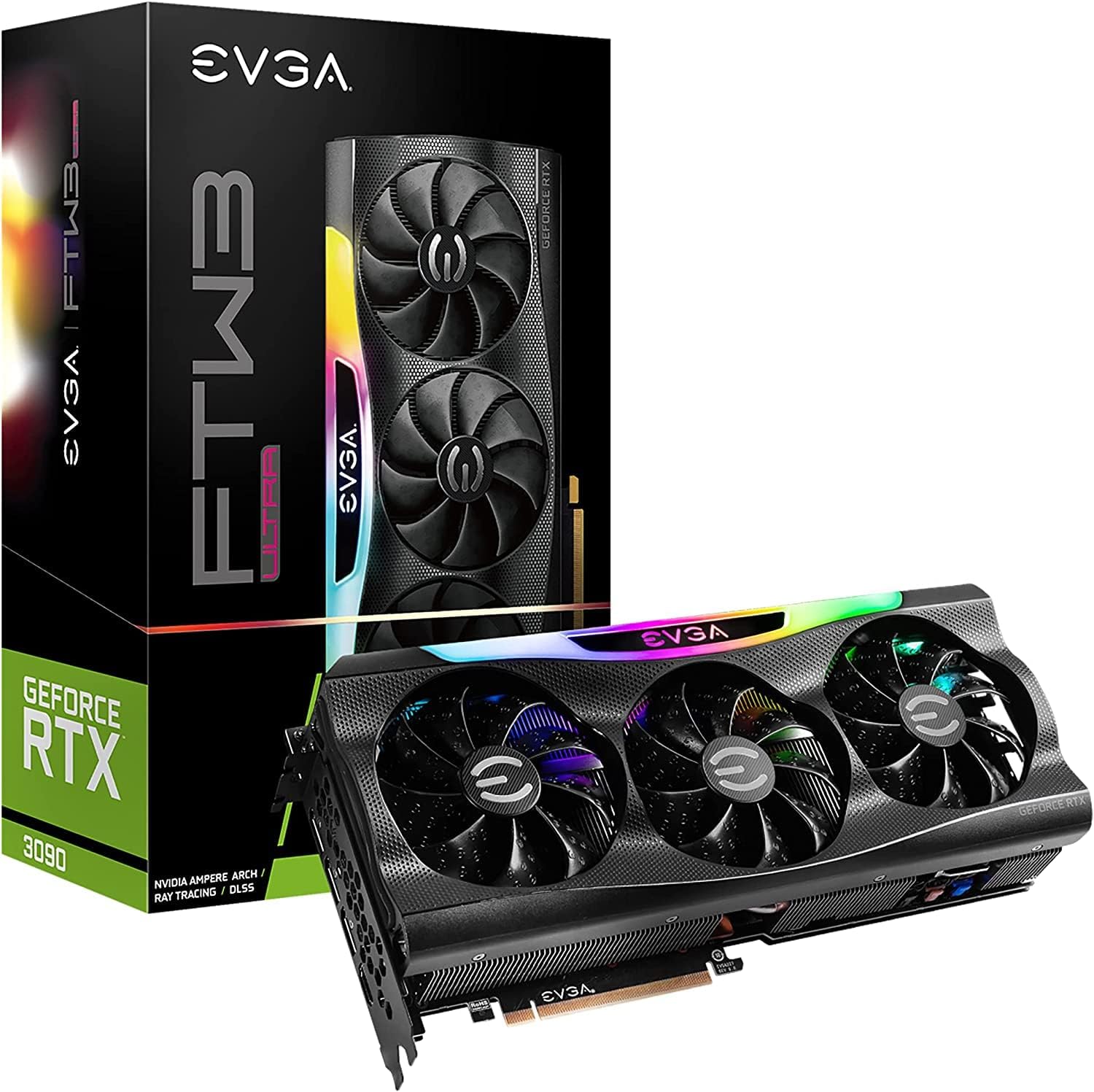
EVGA GeForce RTX 3090 FTW3 Ultra Gaming (Renewed)
The 24GB CUDA card. Its reputation as the cheap 70B route comes from the used street market; this Amazon renewed listing is priced above a new RX 7900 XTX. Check the number before assuming it is the bargain.
- VRAM
- 24GB GDDR6X
- Current listing
- ~$1,500-1,700
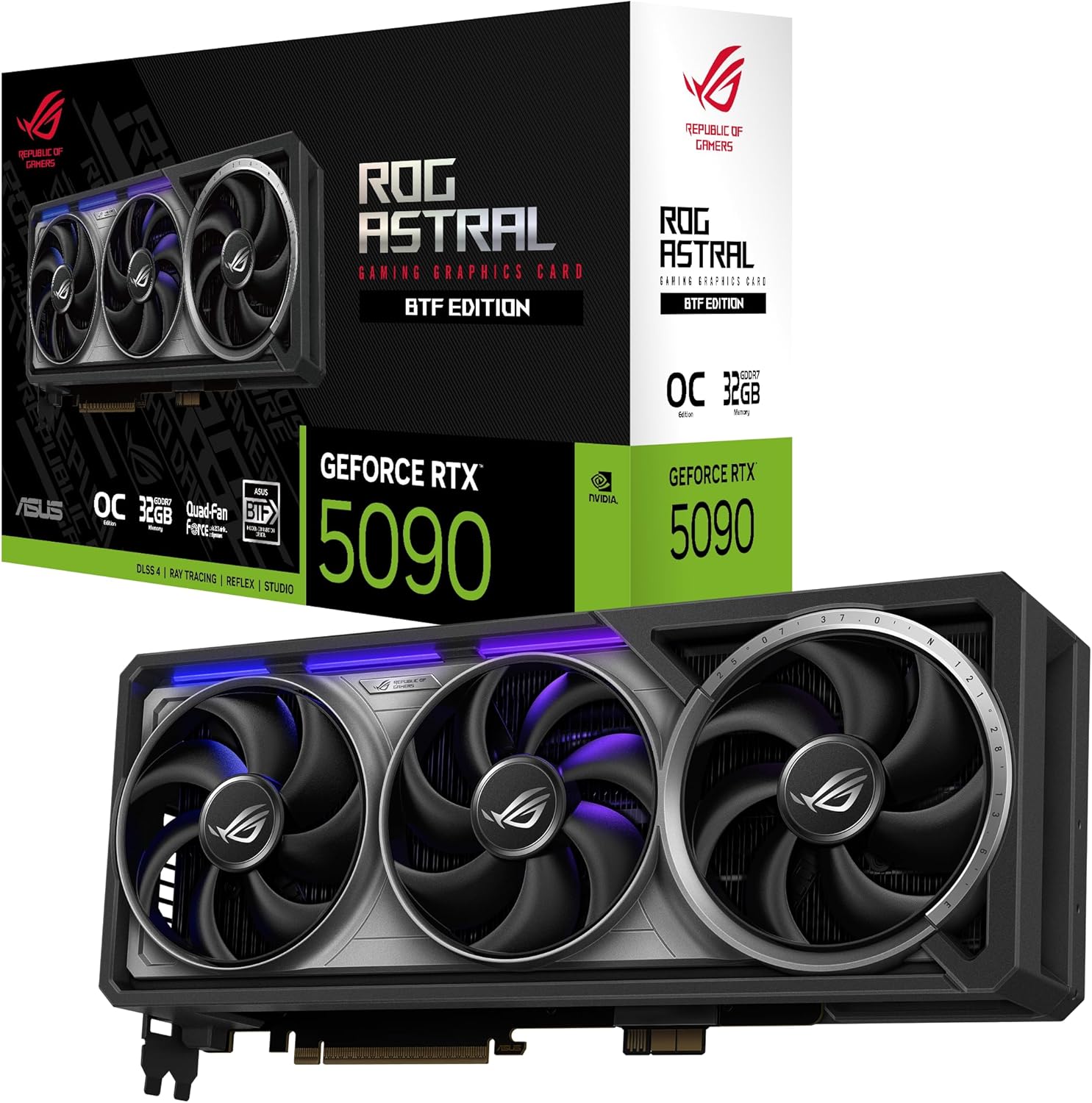
ASUS ROG Astral GeForce RTX 5090 32GB GDDR7
The only consumer card above 24GB, but this linked listing was roughly $4,100-4,300 when checked 2026-07-11, far above MSRP.
- VRAM
- 32GB GDDR7
- Current listing
- ~$4,100-4,300
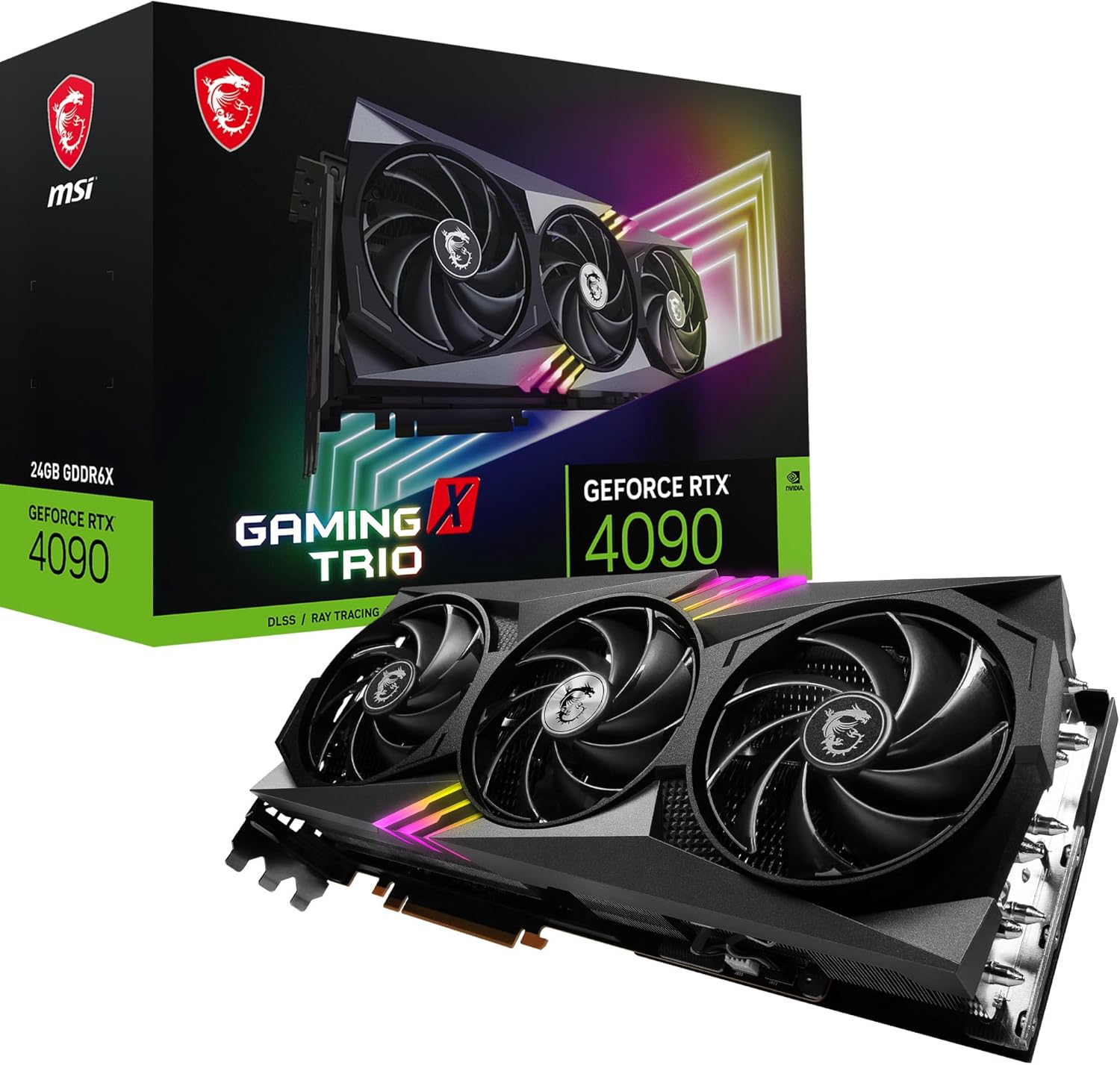
MSI GeForce RTX 4090 Gaming X Trio 24G
Excellent silicon at MSRP, but new 4090 listings turned collector-priced after the 5090 launched. At this price it is 24GB for more than two 24GB cards cost together.
- VRAM
- 24GB GDDR6X
- Current listing
- ~$3,400-3,600
This post contains affiliate links. We may earn a small commission at no extra cost to you. All recommendations are based on our own research and product validation workflow.
Quick answer
An AI workstation is a VRAM budget with a computer attached. Pick the model first. 32B-class at Q4 needs ~19GB — one 24GB card. 70B-class at Q4 needs ~38GB — no single consumer card holds that, so you need two 24GB cards. A single RTX 5090 (32GB) is the simplest build, not the cheapest, and it still will not run 70B at Q4. Everything else in the machine exists to keep the GPUs fed and cool.
Most “AI workstation” builds get assembled in the wrong order. Someone picks a budget, picks a CPU they recognise, adds a GPU that fits what is left, and then discovers the model they wanted to run does not fit in the card they bought.
Build it the other way round. The model you want to run sets a VRAM number. That number picks the card, or the cards. Everything else — CPU, memory, power supply, case — exists to keep those cards fed, powered, and cool. On a machine that does GPU inference, the GPU is not a component. It is the workstation.
This guide is about the machine. If you only need to choose a card, the best GPU for local LLMs guide picks one. If your budget is under $1,000, start with the budget GPU guide instead — the builds below start above that.
Start With The Model, Not The Motherboard
Model memory is arithmetic, not opinion. Weights are roughly the parameter count multiplied by the bytes per parameter that your quantization uses, and then the KV cache grows on top of that as your context window grows.
From our VRAM requirements guide:
| Model class | Q4 weights | Q8 weights | Practical card |
|---|---|---|---|
| 8B | ~5GB | ~9GB | Any 8GB card |
| 32B | ~19GB | ~33GB | One 24GB card |
| 70B | ~38GB | ~72GB | Two 24GB cards |
Two things fall out of that table immediately.
24GB is the hinge. It is the first tier where a 32B model fits with real context headroom, and it is the building block that gets you to 70B in pairs.
70B does not fit on any single consumer card. Not on a 4090. Not on a 5090. At Q4 the weights alone are ~38GB, and the 5090’s 32GB is the largest consumer number available. This is the single fact that turns “AI PC” into “AI workstation,” because it is the reason you end up with two cards.
Before you buy anything, put your actual model and context length into the VRAM calculator. The table above is the shape of the answer; the calculator is the answer.
The Three Builds
These are organised by what they run, because that is the only spec that matters. The price is a consequence, not a target.
Tier 1 — The 32B workstation (one 24GB card)
This is the build most people actually want and few people admit to. A single 24GB card runs 32B-class models at Q4 with room for a usable context window, handles image generation comfortably, and fits in an ordinary case on an ordinary power supply.
The card is the decision, and the received wisdom is currently wrong.
Every build guide on the internet, including an earlier draft of this one, tells you the used RTX 3090 is the cheap 24GB card. That is true on the used street market. It is not true on the listings we can actually link you to. When we last checked the exact Amazon listings in the product box above (2026-07-09):
| Card | 24GB? | Listed price | Condition |
|---|---|---|---|
| ASRock RX 7900 XTX | Yes | ~$1,350–1,450 | New, warranted |
| EVGA RTX 3090 FTW3 | Yes | ~$1,500–1,700 | Renewed |
| MSI RTX 4090 | Yes | ~$3,400–3,600 | New, collector-priced |
| ASUS RTX 5090 (32GB) | 32GB | ~$4,100–4,300 | New, halo-priced |
The renewed 3090 costs more than a brand-new AMD card with a warranty. So:
- RX 7900 XTX (24GB, new). On these numbers it is the cheapest 24GB you can buy, with a warranty. The trade is ROCm instead of CUDA — real setup friction, not a dealbreaker for a Linux-first builder.
- RTX 3090 (renewed or used). Still the 24GB CUDA card, and still the right answer if you value the CUDA path or find one cheaply on the used market. Just do not assume the Amazon listing is a bargain. Verify the number.
- RTX 4090 (24GB). Excellent silicon. At the roughly $3,400–3,600 linked range it is poor value for 24GB. Buy it near MSRP or not at all.
These prices move violently and this table will rot. Click through and check the live number before you buy anything. That is why we date it.
Everything else in this build is unremarkable, and that is the point. Do not spend the GPU budget on a CPU.
Cheapest 24GB today — ASRock RX 7900 XTX. New, warranted, 24GB, and below the renewed 3090 listing when we last checked. Pick it if you are comfortable on ROCm; pick a 3090 if you need CUDA.
Tier 2 — The 70B workstation (two 24GB cards)
This is the build the phrase “AI workstation” was invented for. Two 24GB cards provide 48GB of aggregate capacity only when the runtime shards the model across them, which can clear the ~38GB a 70B model needs at Q4 with room for context.
Which pair is cheapest depends on the day. At the reviewed ranges, two RX 7900 XTX cards total roughly $2,700–2,900 and two renewed 3090s roughly $3,000–3,400, so the AMD pair is cheaper while the CUDA pair costs a software-compatibility premium. Price both before you commit. The runtime must support multi-GPU sharding either way.
What that decision actually costs you, regardless of which pair you pick:
- Roughly 700W of GPU board power under load, before the rest of the machine. See the power section below; this is where most builds go wrong.
- A motherboard that gives both cards real PCIe lanes, and a case that physically fits two triple-slot cards with air between them.
- Condition risk on the used route, doubled. Two chances to buy a card with a tired thermal-pad history.
- On the AMD pair, ROCm multi-GPU setup, which is meaningfully more work than plugging in a second NVIDIA card.
A single RTX 4090 does not solve this. It has 24GB, the same as either card above, while the linked range was roughly $3,400–3,600 when reviewed.
The 24GB CUDA card — EVGA RTX 3090 FTW3 (renewed). Two of these are the classic 48GB build. Its bargain reputation comes from the used market, not from this listing, so check the live price against the AMD pair before you buy two of anything.
Tier 3 — Headroom in a single slot (RTX 5090, 32GB)
The 5090 is the only consumer card above 24GB. At 32GB it does not reach 70B at Q4 either, but it changes what a single-card machine can do: bigger context on 32B models, more room for image and video work, and no dual-GPU complexity at all.
Buy it for simplicity and headroom in one slot, not for cost-efficiency. Per gigabyte of VRAM, two 24GB cards beat it comfortably.
Do not plan around MSRP: the linked listing was available at roughly $4,100–4,300 when checked 2026-07-11. At that price, the 5090’s defining practical problem is value, not capability.
Where The Money Actually Goes
On a GPU-inference machine, the spend is lopsided and it should be. In every tier above, the GPU or GPUs are the majority of the build cost. That is correct. The rest of the parts are there to stop the GPU being the bottleneck, and they fail at that in a small number of predictable ways.
The CPU matters less than you think
When the model sits entirely in VRAM, the GPU does the work and the CPU feeds it. A mid-range modern CPU is fine. Where the CPU starts to matter:
- When you offload layers to system RAM because the model does not fit. Then memory bandwidth and CPU throughput become the bottleneck, and the experience degrades sharply.
- When you run more than one GPU, because you need enough PCIe lanes to give both cards real bandwidth rather than a starved x4 link.
Buy the CPU that gives you the lanes and the platform you need. Do not buy it for inference throughput.
System RAM: match your VRAM, then some
A workable floor is at least as much system RAM as total VRAM, and more if you intend to offload or to load large models from disk quickly. 64GB is comfortable behind a single 24GB card. A dual-24GB build is happier at 128GB.
The power supply is the part that quietly breaks the build
This is the most common expensive mistake in a dual-GPU workstation, and it is worth being blunt about.
High-end GPUs draw transient spikes well above their rated board power for very short intervals. A power supply sized to the average of two cards will trip its own protection under load and shut the machine down — a fault that looks like instability, not like a PSU problem, and sends people chasing drivers for a week.
Manufacturer-rated board power for the cards above:
| Card | VRAM | Rated board power |
|---|---|---|
| RTX 3090 | 24GB | ~350W |
| RX 7900 XTX | 24GB | ~355W |
| RTX 4090 | 24GB | ~450W |
| RTX 5090 | 32GB | ~575W |
Confirm the exact figure for the specific board partner card you buy — AIB models vary, and these are the reference numbers, not a measurement we took.
Two 3090s alone are ~700W of rated draw. Add the rest of the machine, then add headroom for transients. Size the supply for that, not for the sticker. The power, thermals and noise planner will do this arithmetic for you, including what the machine costs to run.
The case is a thermal decision
Two triple-slot cards pressed against each other will heat-soak. The top card starves. Give them a slot of air, front intake that actually reaches them, and accept that a quiet dual-GPU workstation is a harder engineering problem than a quiet single-GPU one.
Multi-GPU: What It Buys, And What It Doesn’t
It buys memory. Two 24GB cards let you load a model that needs 38GB. That is the entire reason to do it, and it is a very good reason.
It does not buy proportional speed. Common local inference runners split a model’s layers across cards and run them in sequence — the cards take turns rather than working the same layer in parallel. You get the capacity of both and roughly the speed of one. Tensor-parallel setups that genuinely split the work exist, but they add configuration and are not the default path.
If you are adding a second card hoping for twice the tokens per second, stop. If you are adding a second card because your model does not fit, proceed.
There is no first-party throughput data in this guide, because we have not measured these builds ourselves. When we do, the numbers will be published with the rig, the model, the quantization, and the wall-meter reading attached — not before. Until then, treat any tokens-per-second figure you read anywhere, including here, as someone else’s hardware.
When Not To Build One
Three honest exits, and taking one of them is not a failure.
Apple Silicon. Unified memory lets a Mac address far more model memory than a consumer GPU at the same price. It is a genuinely different architecture — unified memory versus dedicated VRAM, Metal/MLX versus CUDA — and we never average the two or present them as interchangeable. If you are weighing them, compare them side by side with the Apple Silicon vs discrete GPU tool.
The cloud. If you run models a few hours a week, renting is cheaper and you skip the entire problem. Ownership wins on continuous use, on privacy, and on workloads you do not want leaving the building. The break-even depends on your electricity price and how many hours the machine actually works — run it through the local vs cloud break-even calculator before spending $2,000 on a hunch.
A smaller model. A 32B model at Q4 that fits comfortably on one card will be a better daily experience than a 70B model you have to fight your hardware to load. Capability per dollar is not the same as capability per hour of your life.
Common Mistakes
Buying the CPU first
The most expensive way to build this machine. On GPU inference the CPU is a feeder. Set the VRAM target, buy the cards, then buy the platform that supports them.
Sizing the PSU to rated board power
Rated power is not peak draw. A dual-GPU build sized to the sticker will shut down under load and look like a software problem.
Assuming a second GPU doubles speed
It doubles memory. Speed is roughly unchanged when layers are split sequentially across cards.
Buying a 5090 to run 70B
It has 32GB. A 70B model at Q4 needs ~38GB of weights before any context. It will not fit, and no amount of money spent on one card changes that.
Building before checking whether you need to
Run the break-even calculator. A machine that idles is worse than an API bill.
Frequently Asked Questions
What is the best AI workstation for running local LLMs?
Decide by the model, not the budget. One 24GB card runs 32B-class at Q4. Two 24GB cards clear the ~38GB a 70B model needs. A single RTX 5090 (32GB) is the simplest build, not the cheapest route to capacity.
Do I need a dual-GPU setup for a 70B model?
Yes, on consumer hardware. At Q4, 70B weights are ~38GB and no single consumer card holds that. Two used RTX 3090s are the cheapest 48GB you can buy.
Does the CPU matter for local LLM inference?
Much less than people expect, as long as the model fits in VRAM. It starts to matter when you offload layers to system RAM, and its PCIe lane count matters when you run more than one card.
How much system RAM does an AI workstation need?
At least as much as your total VRAM, and more if you plan to offload. 64GB behind a single 24GB card; 128GB behind two.
Can I mix different GPUs in one workstation?
You can, and layer-splitting runners will generally use both. Expect to be limited by the weaker card in ways that are hard to predict, and expect more setup friction. Two identical cards is the boring, working answer.
What To Read Next
Size the model before you buy anything: the VRAM requirements guide and the VRAM calculator. Choosing between individual cards is the job of the best GPU for local LLMs guide. Under $1,000, start with the budget GPU guide. And before any of it, decide whether you should own hardware at all with the local vs cloud break-even calculator.